Admin
Admin Users
The Admin Users page manages platform-admin and tenant-admin accounts. This is the smallest, most-sensitive surface in the manual — every account here can change tenant data.
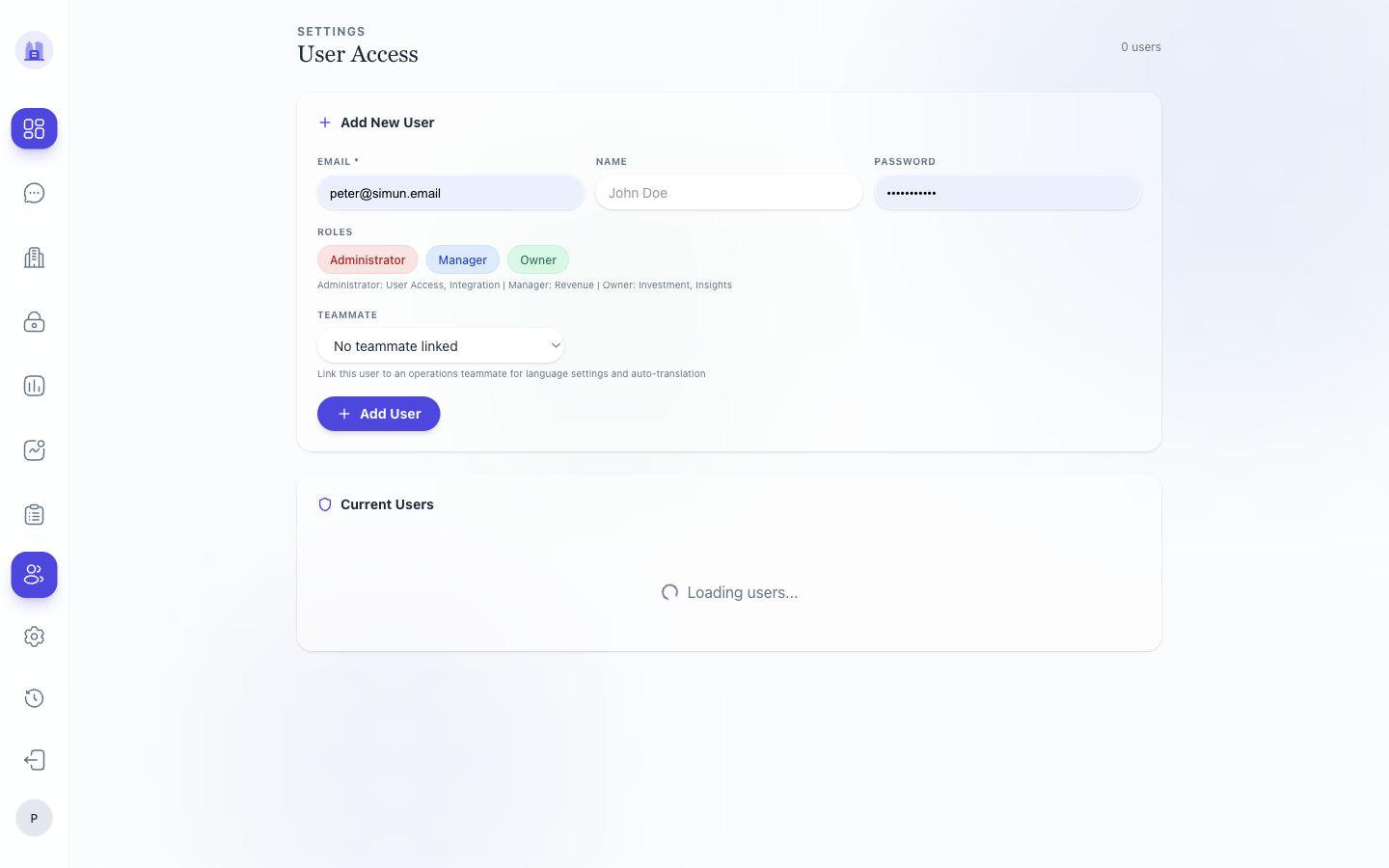
What an admin user is
A user in the users table — distinct from a teammate in the teammates table.
- Users authenticate and act on the dashboard. They have a role (
admin,superadmin,viewer). - Teammates are people who do work (cleaners, hosts) — they're routed tasks via WhatsApp but don't necessarily have dashboard access.
A single physical person can be both (admin user + assigned teammate). Most cleaners are teammates only.
Roles for users
| Role | Scope |
|---|---|
admin |
One tenant; full read+write |
superadmin |
All tenants; full read+write + tenant settings |
viewer |
One tenant; read-only on reports |
Adding an admin user
- Admin Users → New user.
- Email, name, role, tenant (defaults to current).
- Set initial password (you'll need to communicate it to the user out-of-band).
- Save. The user can log in immediately.
Removing an admin user
- Find the row → Delete.
- Confirm. The user is removed; any active session is invalidated on next API call.
⚠ Deleting the only admin for a tenant leaves the tenant locked out. Always have at least one admin per tenant.
Password resets
There is no self-serve password reset in the current build. To reset a user's password:
- Open the user row → Reset password.
- Set a new password.
- Communicate it to the user out-of-band.
Audit
Every admin-user change is in the Activity Log. Filter Action = users.* to see the history.
Related issues
- #70 — Authentication bypass: fallback users hard-coded admin + plaintext superadmin login (fixed; no operator-visible change).
- #76 — JWT lifecycle hardening.
- #83 — OAuth redirectUri allowlist + admin-impersonation audit.
Source: the FlatsBratislava operator manual.