Dashboard (Pulse)
The Pulse dashboard (/pulse) is the operator home screen. It's the first thing you see after login and the screen you'll probably leave open all day.
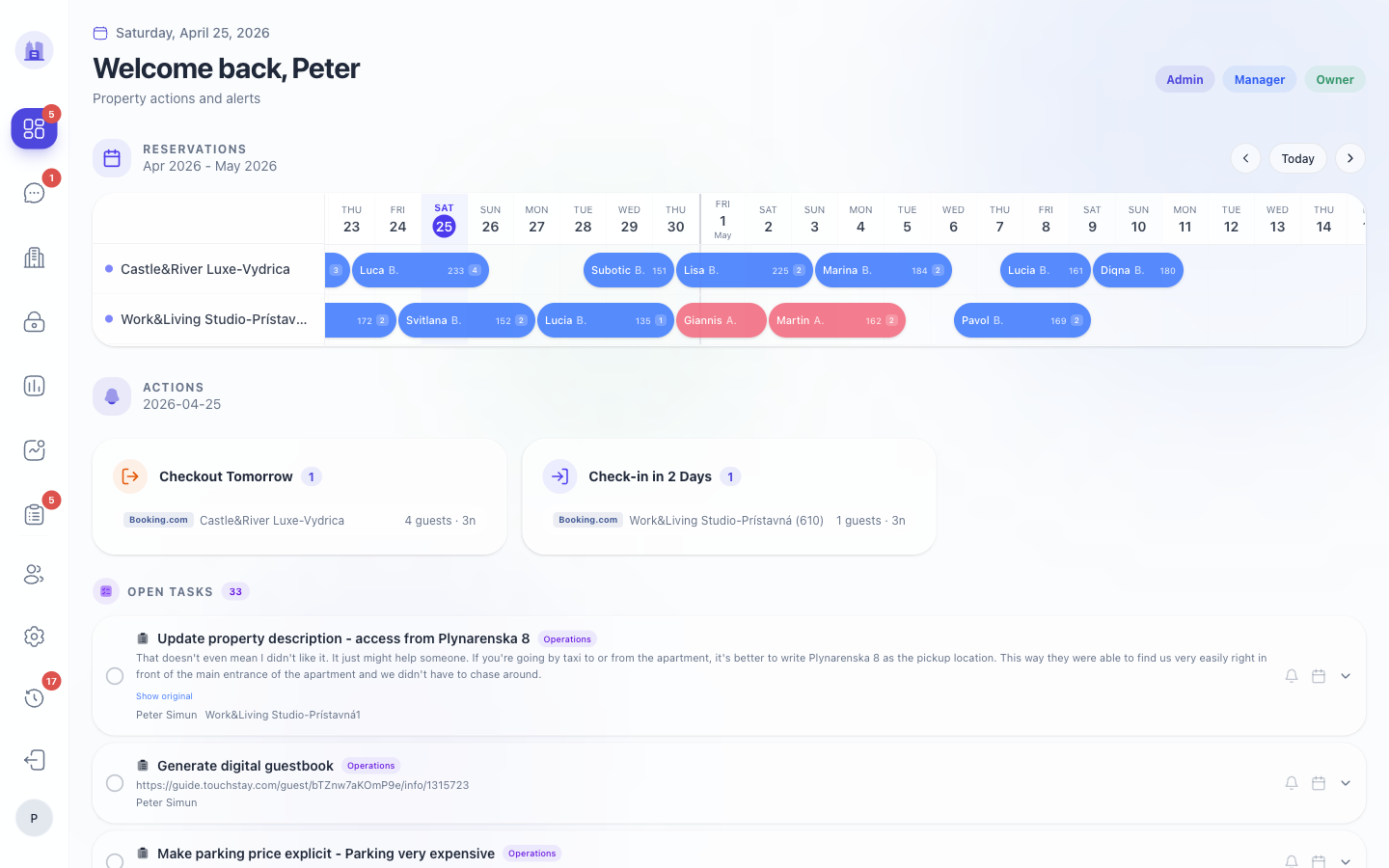
Anatomy
Header
- Tenant picker (top-right) — only visible to superadmins; switches which tenant's data you're looking at.
- User menu — sign out, switch tenant, profile.
- Notifications bell — clicked to view recent system alerts (this is separate from the WhatsApp operator notifications).
Today's check-ins / check-outs
Each card shows the property, guest name, expected arrival window, and status (pending check-in / checked-in / late / departed). Click a card to jump to the reservation detail page.
Auto-resolves section
Tasks that will automatically complete or fire later today (e.g. "Send pre-checkout reminder at 19:00"). The card shows:
- The task name and the reservation it belongs to
- The scheduled fire time (e.g.
19:00) - Whether the auto-resolve condition is currently met or blocked
- A ⚠ warning if the condition is blocked and intervention may be needed
Why this matters: if you see "Send pre-checkout reminder · AUTO · 19:00 ⚠ condition not yet met" and the condition is something you can fix (e.g. "reply to the guest's open message"), you have until 19:00 to do it. See Tasks → Auto-resolve for the full mental model.
Tasks awaiting you
Tasks routed to your role that the system can't auto-complete — Send Check-in, Approve cleaner photo, Resolve guest dispute, etc. Each card has a primary action button (e.g. Send Check-in) and a "more options" menu (snooze, reassign, postpone).
Recent messages
The last few inbound guest messages where the AI hasn't yet been able to reply confidently. Click in to use AI Suggest to draft a reply — see Communications → AI Suggest.
Pulse Copilot
A floating chat panel (bottom-right) — ask it questions about your operations, paste a guest screenshot, have it create a task. See Pulse Copilot.
Loading states
Every data-fetching card on Pulse shows a skeleton placeholder while it loads, never a blank space. If a card stays in skeleton state for more than ~5 seconds it has likely failed — refresh the page or check Admin → System Logs.
Where to next
- A task card has no time? See Tasks → Task Card anatomy.
- An auto-resolve is blocked unexpectedly? See Tasks → Auto-resolve.
- A guest message hasn't been picked up by the AI? See Communications → AI Suggest.
- You want to know what changed recently? See the Changelog.
Related issues
- #173 — loading-state UX convention (skeletons on every data-fetching card).
- #214 — auto-resolve cards now show scheduled fire time + condition status.
- #181 — admin-photo notification flood eliminated; admin chat now visible.