Properties
How to add a new property
Step-by-step: from nothing to a property that receives reservations and fires automations.
Route 1 — synced from a booking channel (most common)
If the listing already exists on Hospitable or Beds24, you don't create anything by hand:
- Connect the channel under Admin → Integrations (Hospitable API key, or the Beds24 token) — see Settings → Integrations.
- The first sync pulls the listing in and creates the property with basic data (name, address, capacity where the channel provides it).
- Continue at Complete the configuration below.
Route 2 — created by hand
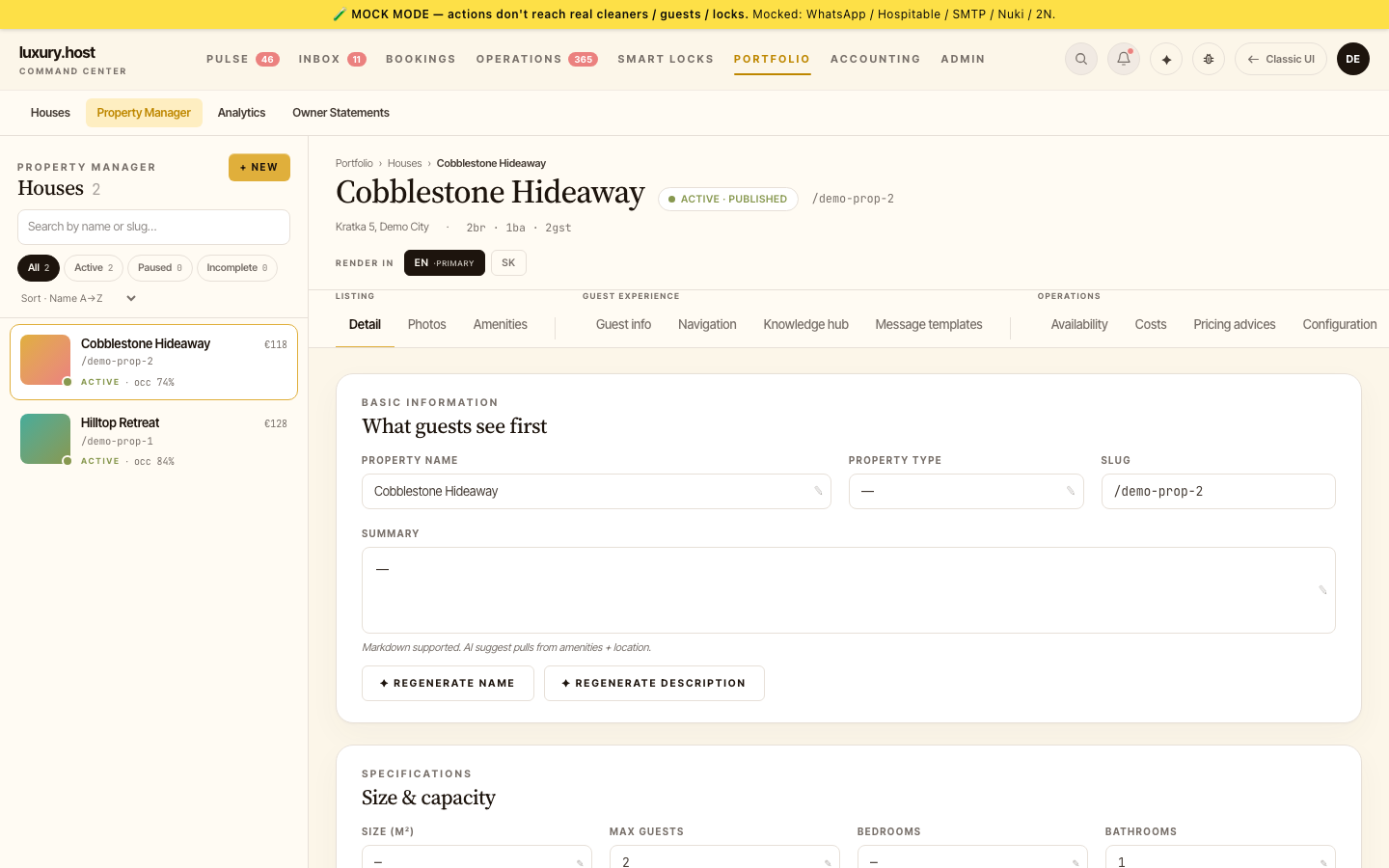
- Open Portfolio → Property Manager.
- Click + NEW.
- Give it a name and a slug (the slug becomes part of guest-facing URLs — short, lowercase, no spaces).
- Save — the property appears in the Houses list as Incomplete until configured.
You can also start from Bookings → + ADD HOUSE, which lands in the same editor.
Complete the configuration
Work through the Property Manager tabs (see Property Configuration for what every field does):
- Detail — name, type, summary, size & capacity, check-in/check-out window. The check-in window drives task scheduling ("send check-in 24h before
checkInTime"). - Photos — used on guest-facing surfaces and the guidebook.
- Guest info / Navigation / Knowledge hub — everything the AI and the guidebook can tell a guest: arrival directions, house rules, appliance manuals.
- Message templates — per-property overrides for the standard guest messages (optional; defaults inherit).
- Configuration — the channel connector (provider, property ID, room map, Test Connection) and operational settings.
Wire the operations
- Assign teammates — at least one host and one cleaner under Team & Access → Teammates. Without an assignee, tasks for this property have no one to route to.
- Smart lock — link the Nuki lock (and 2N intercom if the building has one) under Smart Locks. This enables per-stay PIN generation.
- Pricing — set the base price so revenue reports and the pricing advisor have a baseline. See Base price editing.
Verify it works
- The property shows ACTIVE in the Houses list.
- Create (or wait for) a reservation → open it and check the task list: the standard automations (Generate access code, Send Check-in, Cleaning) should have spawned. See Tasks.
- If a task shows unassigned, the teammate wiring from the previous step is missing.
Source: the luxury.host operator manual.